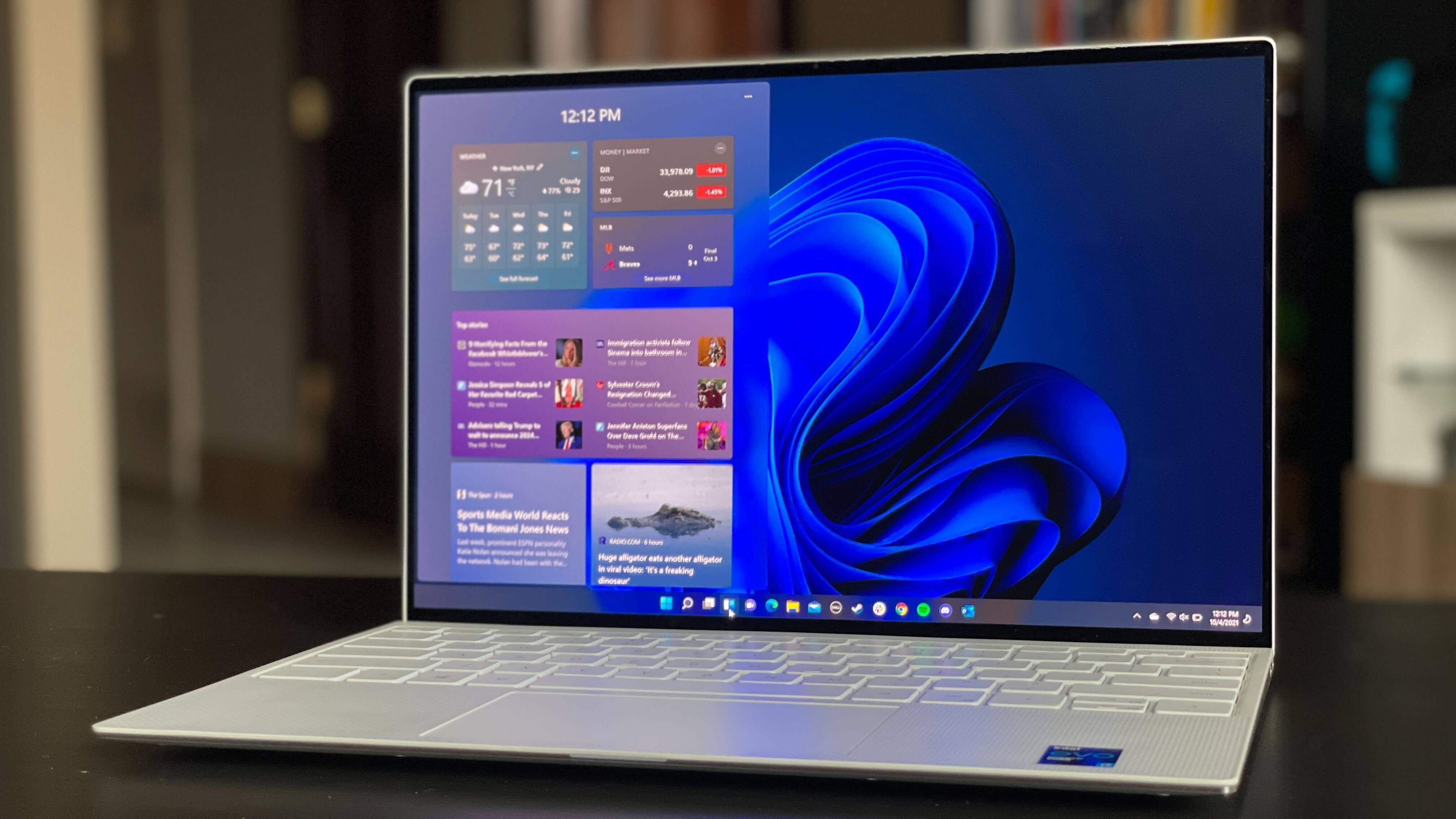
Scroll Down for Win 10 and a video tutorial or click on the image for win 11
Hello and welcome to our tutorial on how to install Windows 11! Microsoft’s latest operating system has received a lot of attention since its release, and we’re here to guide you through the installation process. Whether you’re upgrading from an older version of Windows or installing it for the first time, this tutorial will help you get started.
Step 1: Check your system requirements
Before you begin the installation process, you need to make sure your PC meets the minimum system requirements for Windows 11. These include a 64-bit processor with at least 1 GHz clock speed, 4 GB of RAM, and 64 GB of storage. You’ll also need a DirectX 12 compatible graphics card, a display with at least 720p resolution, and UEFI firmware with secure boot capability.
Step 2: Create a bootable USB drive
To install Windows 11, you’ll need to create a bootable USB drive. You can download the Windows 11 ISO file from the Microsoft website and then use the Rufus tool to create the bootable drive. Make sure to select the correct USB drive and follow the on-screen instructions to complete the process.
Step 3: Boot from the USB drive
Once you’ve created the bootable USB drive, you need to boot your PC from it. To do this, restart your PC and enter the BIOS settings by pressing the key that appears on your screen (usually F2 or Delete). Then, navigate to the boot menu and select the USB drive as the first boot device. Save the changes and exit the BIOS.
Step 4: Install Windows 11
Once you’ve booted from the USB drive, you’ll be presented with the Windows 11 setup screen. Select your language, time zone, and other preferences, and then click “Install Now”. Follow the on-screen instructions to enter your product key, select the version of Windows 11 you want to install, and accept the license terms.
Next, select “Custom: Install Windows only (advanced)” to choose the partition where you want to install Windows 11. If you’re upgrading from an older version of Windows, you can select the “Upgrade” option instead. Once you’ve made your selection, click “Next” and wait for the installation process to complete.
Step 5: Set up your PC
After the installation process is complete, you’ll be prompted to set up your PC. This includes selecting your privacy settings, creating a user account, and connecting to the internet. Follow the on-screen instructions to complete the setup process.
Here are the links:
Windows 11
Windows 10
A Video Tutorial
And that’s it! You’ve successfully installed Windows 11 on your PC. We hope this tutorial was helpful and that you enjoy using Microsoft’s latest operating system. If you have any questions or issues during the installation process, feel free to consult the Microsoft website or contact their support team for assistance.
Comments
Post a Comment